







The LinuxServer.io team brings you another container release featuring:
- regular and timely application updates
- easy user mappings (PGID, PUID)
- custom base image with s6 overlay
- weekly base OS updates with common layers across the entire LinuxServer.io ecosystem to minimise space usage, down time and bandwidth
- regular security updates
Find us at:
- Blog - all the things you can do with our containers including How-To guides, opinions and much more!
- Discord - realtime support / chat with the community and the team.
- Discourse - post on our community forum.
- Fleet - an online web interface which displays all of our maintained images.
- GitHub - view the source for all of our repositories.
- Open Collective - please consider helping us by either donating or contributing to our budget
DEPRECATION NOTICE
This image is deprecated. We will not offer support for this image and it will not be updated.
Consider switching to https://github.com/netbootxyz/docker-netbootxyz for the official container which is a drop-in replacement.
linuxserver/netbootxyz









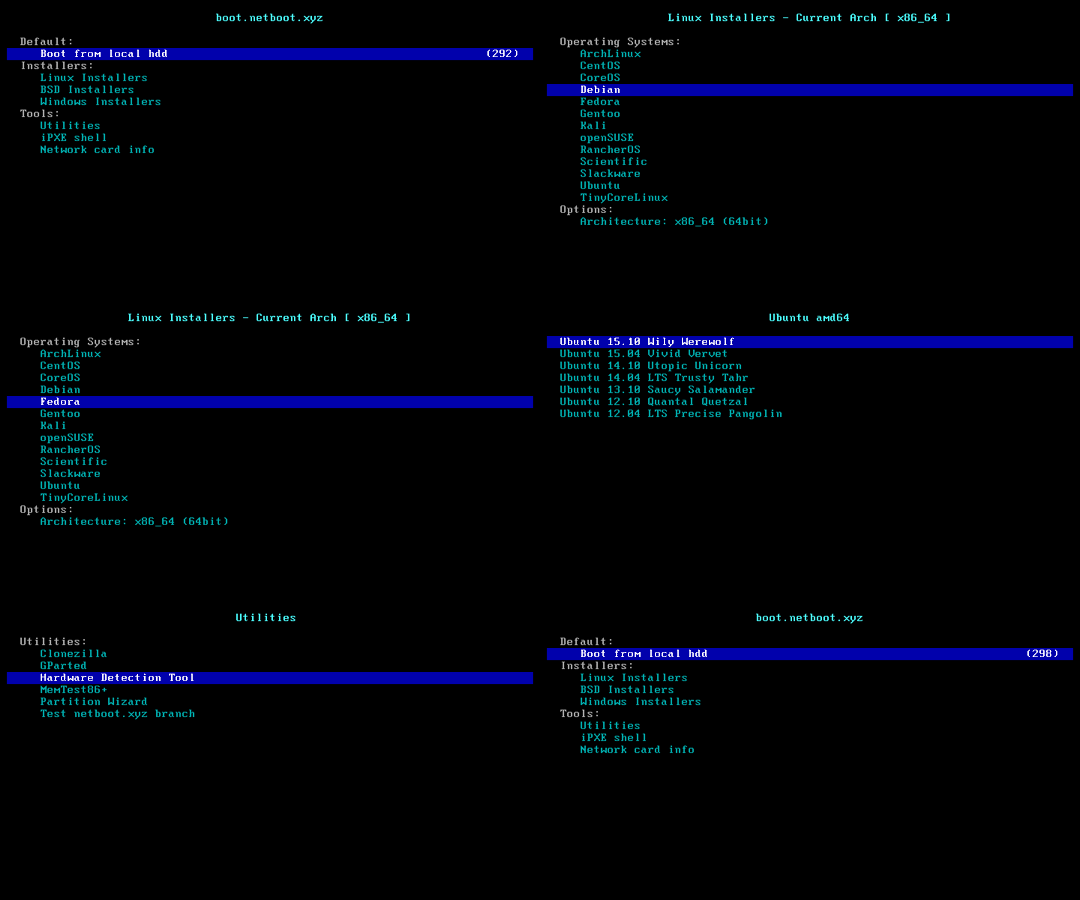
Netbootxyz is a way to PXE boot various operating system installers or utilities from one place within the BIOS without the need of having to go retrieve the media to run the tool. iPXE is used to provide a user friendly menu from within the BIOS that lets you easily choose the operating system you want along with any specific types of versions or bootable flags.
Supported Architectures
We utilise the docker manifest for multi-platform awareness. More information is available from docker here and our announcement here.
Simply pulling lscr.io/linuxserver/netbootxyz:tftp should retrieve the correct image for your arch, but you can also pull specific arch images via tags.
The architectures supported by this image are:
| Architecture | Available | Tag |
|---|---|---|
| x86-64 | ✅ | amd64-<version tag> |
| arm64 | ✅ | arm64v8-<version tag> |
| armhf | ❌ |
Application Setup
To use this image you need an existing DHCP server where you can set this TFTP server as your DHCP boot destination. This image does not contain a DHCP server nor do we aim to support one in the future. This is simply a TFTP server hosting the latest IPXE kernel builds from netboot.xyz. If you are interested in their project and lack the ability to setup a DHCP server to boot this payload they also have USB stick images you can use available on their downloads page.
Router Setup Examples
PFSense
Services -> DHCP Server
Set both the option for "TFTP Server" and the options under the Advanced "Network Booting" section.
- check enable
- Next server- IP used for TFTP Server
- Default BIOS file name-
netboot.xyz.kpxe - UEFI 32 bit file name-
netboot.xyz.efi - UEFI 64 bit file name-
netboot.xyz.efi
OPNsense
Services -> DHCP Server
Under the Advanced "Network Booting" section.
- check enable
- Next server- IP of docker host
- Default BIOS file name-
netboot.xyz.kpxe - UEFI 32 bit file name-
netboot.xyz.efi - UEFI 64 bit file name-
netboot.xyz.efi
Unifi Security Gateway (with the controller)
Networks -> LAN (or the network you want to boot from) -> ADVANCED DHCP OPTIONS
- tick Enable network boot
- Server- YOURSERVERIP
- Filename-
netboot.xyz.kpxeAdvanced full support - For USG variants force provisioning a json containing the same config used for EdgeOS (shown below) will fully support netboot.
- For UDM variants, creating a valid dnsmasq config and placing in /run/dnsmasq.conf.d will load the config, but will not survive reboots or firmware updates source.
EdgeOS/VyOS
Connect via SSH
configure
set service dhcp-server use-dnsmasq enable
set service dns forwarding options \"dhcp-match=set:bios,60,PXEClient:Arch:00000\"
set service dns forwarding options \"dhcp-boot=tag:bios,netboot.xyz.kpxe,,SERVERIP\"
set service dns forwarding options \"dhcp-match=set:efi32,60,PXEClient:Arch:00002\"
set service dns forwarding options \"dhcp-boot=tag:efi32,netboot.xyz.efi,,SERVERIP\"
set service dns forwarding options \"dhcp-match=set:efi32-1,60,PXEClient:Arch:00006\"
set service dns forwarding options \"dhcp-boot=tag:efi32-1,netboot.xyz.efi,,SERVERIP\"
set service dns forwarding options \"dhcp-match=set:efi64,60,PXEClient:Arch:00007\"
set service dns forwarding options \"dhcp-boot=tag:efi64,netboot.xyz.efi,,SERVERIP\"
set service dns forwarding options \"dhcp-match=set:efi64-1,60,PXEClient:Arch:00008\"
set service dns forwarding options \"dhcp-boot=tag:efi64-1,netboot.xyz.efi,,SERVERIP\"
set service dns forwarding options \"dhcp-match=set:efi64-2,60,PXEClient:Arch:00009\"
set service dns forwarding options \"dhcp-boot=tag:efi64-2,netboot.xyz.efi,,SERVERIP\"
commit; save
Dnsmasq/DD-WRT/Tomato/PIHOLE
Various locations to set Additional/Custom DNSMASQ options in UI or config files Set the following lines:
dhcp-match=set:bios,60,PXEClient:Arch:00000
dhcp-boot=tag:bios,netboot.xyz.kpxe,,YOURSERVERIP
dhcp-match=set:efi32,60,PXEClient:Arch:00002
dhcp-boot=tag:efi32,netboot.xyz.efi,,YOURSERVERIP
dhcp-match=set:efi32-1,60,PXEClient:Arch:00006
dhcp-boot=tag:efi32-1,netboot.xyz.efi,,YOURSERVERIP
dhcp-match=set:efi64,60,PXEClient:Arch:00007
dhcp-boot=tag:efi64,netboot.xyz.efi,,YOURSERVERIP
dhcp-match=set:efi64-1,60,PXEClient:Arch:00008
dhcp-boot=tag:efi64-1,netboot.xyz.efi,,YOURSERVERIP
dhcp-match=set:efi64-2,60,PXEClient:Arch:00009
dhcp-boot=tag:efi64-2,netboot.xyz.efi,,YOURSERVERIP
OpenWRT
uci set dhcp.@dnsmasq[0].dhcp_match=set:bios,60,PXEClient:Arch:00000
uci set dhcp.@dnsmasq[0].dhcp_boot=tag:bios,netboot.xyz.kpxe,,YOURSERVERIP
uci set dhcp.@dnsmasq[0].dhcp_match=set:efi32,60,PXEClient:Arch:00002
uci set dhcp.@dnsmasq[0].dhcp_boot=tag:efi32,netboot.xyz.efi,,YOURSERVERIP
uci set dhcp.@dnsmasq[0].dhcp_match=set:efi32-1,60,PXEClient:Arch:00006
uci set dhcp.@dnsmasq[0].dhcp_boot=tag:efi32-1,netboot.xyz.efi,,YOURSERVERIP
uci set dhcp.@dnsmasq[0].dhcp_match=set:efi64,60,PXEClient:Arch:00007
uci set dhcp.@dnsmasq[0].dhcp_boot=tag:efi64,netboot.xyz.efi,,YOURSERVERIP
uci set dhcp.@dnsmasq[0].dhcp_match=set:efi64-1,60,PXEClient:Arch:00008
uci set dhcp.@dnsmasq[0].dhcp_boot=tag:efi64-1,netboot.xyz.efi,,YOURSERVERIP
uci set dhcp.@dnsmasq[0].dhcp_match=set:efi64-2,60,PXEClient:Arch:00009
uci set dhcp.@dnsmasq[0].dhcp_boot=tag:efi64-2,netboot.xyz.efi,,YOURSERVERIP
uci commit
/etc/init.d/dnsmasq restart
Microsoft Server DHCP
- Run the DHCP program
- Under Scope/Scope Options
- check option 066 and enter the FQDN or IP of your TFTP boot server
- check option 067 and enter one of the following bootfile names:
- Default BIOS file name- netboot.xyz.kpxe
- UEFI 32 bit file name- netboot.xyz.efi
- UEFI 64 bit file name- netboot.xyz.efi
Anything else from a router standpoint is a crapshoot for supporting Dnsmasq options or proprietary PXE boot options, check Google for support (try your exact router model number with 'pxe boot') or look into setting up your own DHCP server in Linux.
This image also contains netboot.xyz.efi which can be used to boot using UEFI network boot. The UEFI boot and menu will have limited functionality if you choose to use it.
Usage
To help you get started creating a container from this image you can either use docker-compose or the docker cli.
Note
Unless a parameter is flaged as 'optional', it is mandatory and a value must be provided.
docker-compose (recommended, click here for more info)
---
services:
  netbootxyz:
    image: lscr.io/linuxserver/netbootxyz:tftp
    container_name: netbootxyz
    ports:
      - 69:69/udp
    restart: unless-stopped
docker cli (click here for more info)
docker run -d \
  --name=netbootxyz \
  -p 69:69/udp \
  --restart unless-stopped \
  lscr.io/linuxserver/netbootxyz:tftp
Parameters
Containers are configured using parameters passed at runtime (such as those above). These parameters are separated by a colon and indicate <external>:<internal> respectively. For example, -p 8080:80 would expose port 80 from inside the container to be accessible from the host's IP on port 8080 outside the container.
| Parameter | Function |
|---|---|
-p 69:69/udp |
TFTP Port. |
Environment variables from files (Docker secrets)
You can set any environment variable from a file by using a special prepend FILE__.
As an example:
-e FILE__MYVAR=/run/secrets/mysecretvariable
Will set the environment variable MYVAR based on the contents of the /run/secrets/mysecretvariable file.
Umask for running applications
For all of our images we provide the ability to override the default umask settings for services started within the containers using the optional -e UMASK=022 setting.
Keep in mind umask is not chmod it subtracts from permissions based on it's value it does not add. Please read up here before asking for support.
Docker Mods


We publish various Docker Mods to enable additional functionality within the containers. The list of Mods available for this image (if any) as well as universal mods that can be applied to any one of our images can be accessed via the dynamic badges above.
Support Info
-
Shell access whilst the container is running:
docker exec -it netbootxyz /bin/bash -
To monitor the logs of the container in realtime:
docker logs -f netbootxyz -
Container version number:
docker inspect -f '{{ index .Config.Labels "build_version" }}' netbootxyz -
Image version number:
docker inspect -f '{{ index .Config.Labels "build_version" }}' lscr.io/linuxserver/netbootxyz:tftp
Updating Info
Most of our images are static, versioned, and require an image update and container recreation to update the app inside. With some exceptions (noted in the relevant readme.md), we do not recommend or support updating apps inside the container. Please consult the Application Setup section above to see if it is recommended for the image.
Below are the instructions for updating containers:
Via Docker Compose
-
Update images:
-
All images:
docker-compose pull -
Single image:
docker-compose pull netbootxyz
-
-
Update containers:
-
All containers:
docker-compose up -d -
Single container:
docker-compose up -d netbootxyz
-
-
You can also remove the old dangling images:
docker image prune
Via Docker Run
-
Update the image:
docker pull lscr.io/linuxserver/netbootxyz:tftp -
Stop the running container:
docker stop netbootxyz -
Delete the container:
docker rm netbootxyz -
Recreate a new container with the same docker run parameters as instructed above (if mapped correctly to a host folder, your
/configfolder and settings will be preserved) -
You can also remove the old dangling images:
docker image prune
Image Update Notifications - Diun (Docker Image Update Notifier)
Tip
We recommend Diun for update notifications. Other tools that automatically update containers unattended are not recommended or supported.
Building locally
If you want to make local modifications to these images for development purposes or just to customize the logic:
git clone https://github.com/linuxserver/docker-netbootxyz.git
cd docker-netbootxyz
docker build \
  --no-cache \
  --pull \
  -t lscr.io/linuxserver/netbootxyz:tftp .
The ARM variants can be built on x86_64 hardware and vice versa using lscr.io/linuxserver/qemu-static
docker run --rm --privileged lscr.io/linuxserver/qemu-static --reset
Once registered you can define the dockerfile to use with -f Dockerfile.aarch64.
Versions
- 17.05.25: - Deprecate
- 30.06.24: - Rebase to Alpine 3.20.
- 08.12.23: - Rebase tftp branch to Alpine 3.19.
- 17.11.23: - Rebase tftp branch to Alpine 3.18.
- 01.07.23: - Deprecate armhf. As announced here
- 05.03.23: - Rebase tftp branch to Alpine 3.17.
- 14.10.22: - Rebasing tftp branch to Alpine 3.16, migrate to s6v3.
- 23.01.21: - Rebasing to alpine 3.13.
- 01.06.20: - Rebasing to alpine 3.12.
- 19.12.19: - Rebasing to alpine 3.11.
- 10.12.19: - Adding tftp branch to provide tftp only option to latest users.
- 22.10.19: - Initial release.