 07ed3771dc
### Context In development of MDCActionSheet I thought it was necessary to have this extra work for `viewWillTransitionToSize:withTransitionCoordinator:`. After putting this into production it is no longer necessary and is causing bugs. ### The problem ActionSheet doesn't layout correctly after a rotation ### The fix Remove the extra work in `viewWillTransitionToSize:withTransitionCoordinator:` and let `layoutSubviews` handle layout. ### Testing This was tested in iOS 11.1 and iOS 12 for iPhone X, iPhone XS Max, and iPad (Split View, Regular) ### Related bugs Closes #5409 ### Screenshots | Before | After | | - | - | |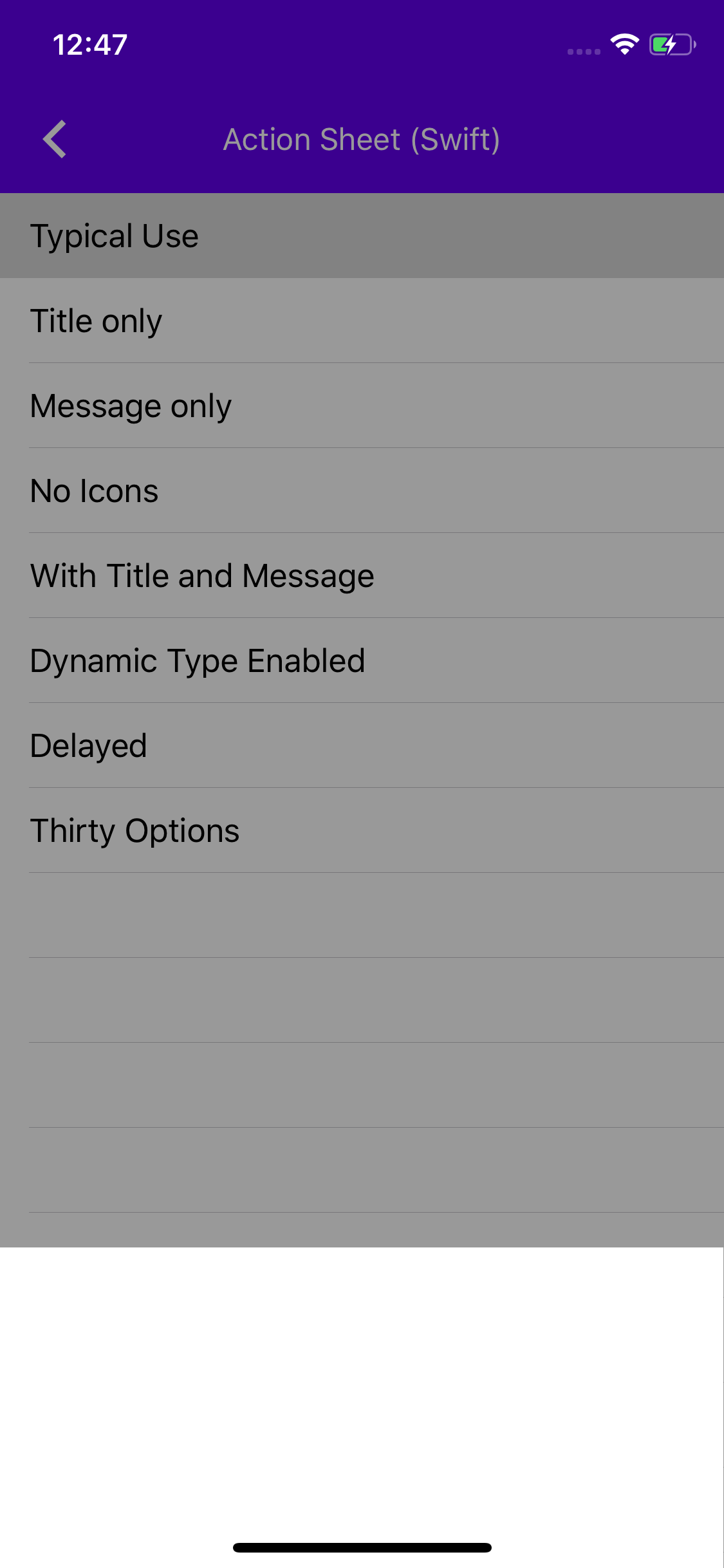|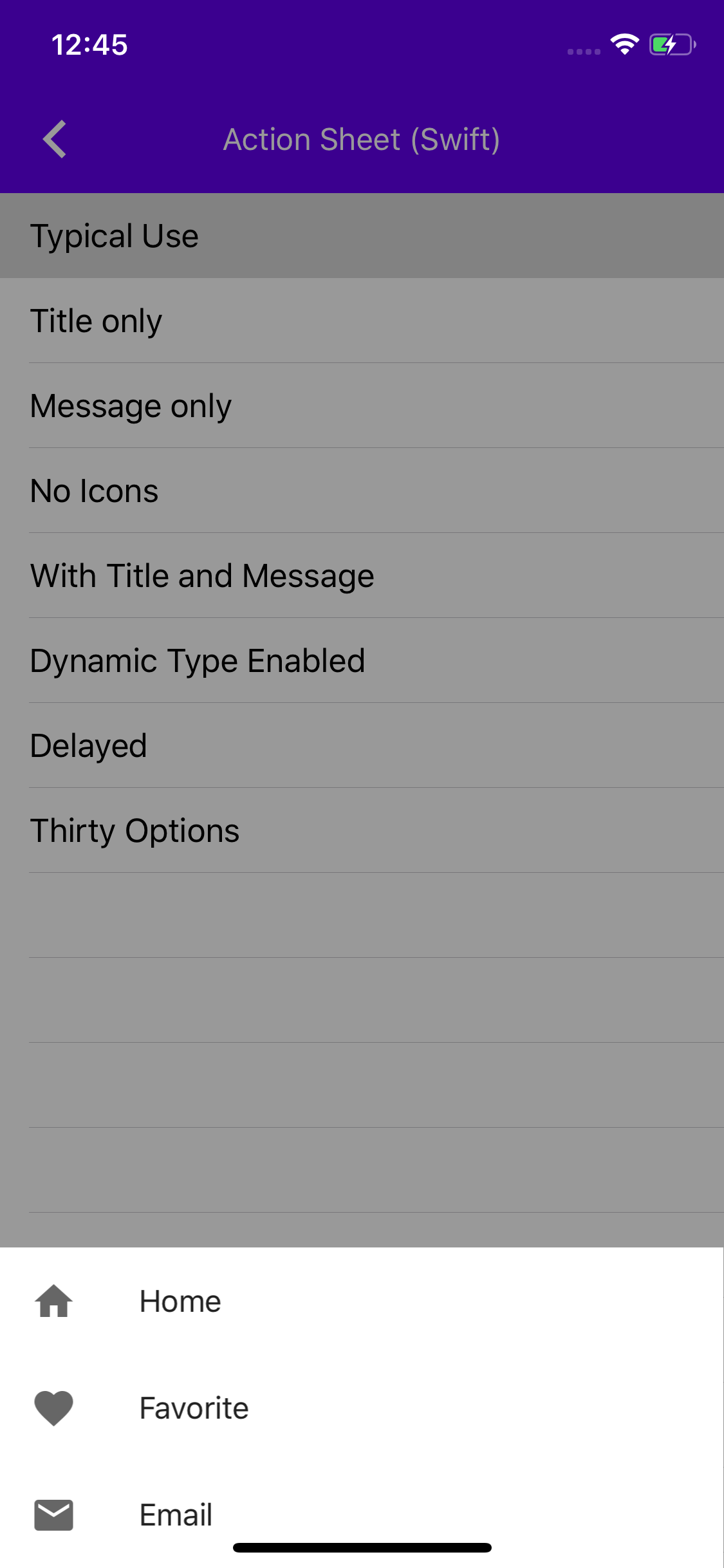| **_Note:_** Screenshot is generated from an iPhone X on iOS 12 starting from portrait, rotating to landscape and back to portrait.


Action Sheet

Material design action sheets should be used as an overflow menu. An Action Sheet comes up from the bottom of the screen and displays actions a user can take.


Design & API documentation
Table of contents
- Overview
- Installation
- Usage
- MDCActionSheetController vs. UIAlertControllerStyleActionSheet
- Extensions
- Accessibility
Overview
MDCActionSheetController is a material design implementation of UIAlertControllerStyleActionSheet.
Action Sheet is currently an alpha component. Therefore, clients that wish to use Action Sheet in their app will need to manually clone the repo and add the code to their project.
Installation
Installation with CocoaPods
Add the following to your Podfile:
pod 'MaterialComponents/ActionSheet'
Then, run the following command:
pod install
Importing
To import the component:
Swift
import MaterialComponents.MaterialActionSheet
Objective-C
#import "MaterialActionSheet.h"
Usage
Typical use
Create an instance of MDCActionSheetController and add actions to it. You can now
present the action sheet controller.
Swift
let actionSheet = MDCActionSheetController(title: "Action Sheet",
                                           message: "Secondary line text")
let actionOne = MDCActionSheetAction(title: "Home",
                                     image: UIImage(named: "Home"),
                                     handler: { print("Home action" })
let actionTwo = MDCActionSheetAction(title: "Email",
                                     image: UIImage(named: "Email"),
                                     handler: { print("Email action" })
actionSheet.addAction(actionOne)
actionSheet.addAction(actionTwo)

present(actionSheet, animated: true, completion: nil)
Objective-C
MDCActionSheetController *actionSheet =
    [MDCActionSheetController actionSheetControllerWithTitle:@"Action sheet"
                                                     message:@"Secondary line text"];
MDCActionSheetAction *homeAction =
    [MDCActionSheetAction actionWithTitle:@"Home"
                                    image:[UIImage imageNamed:@"Home"]
                                  handler:nil];
MDCActionSheetAction *favoriteAction =
    [MDCActionSheetAction actionWithTitle:@"Favorite"
                                    image:[UIImage imageNamed:@"Favorite"]
                                  handler:nil];
[actionSheet addAction:homeAction];
[actionSheet addAction:favoriteAction];
[self presentViewController:actionSheet animated:YES completion:nil];
MDCActionSheetController vs. UIAlertControllerStyleActionSheet
MDCActionSheetController is intended to mirror a UIAlertController with the UIAlertControllerStyleActionSheet style.
Similarities
-
Both classes are presented from the bottom of the screen on an iPhone and have a list of actions.
-
Both classes support optional title and message properties.
Differences
-
UIAlertControllerActionSheetStyle requires that you set the popoverPresentationController on larger devices, MDCActionSheetController doesn't support popoverPresentationController but instead always comes up from the bottom of the screen.
-
UIAlertControllerStyleActionSheet is a style of UIAlertController and not its own class. If you need a Material UIAlertController please see the
MDCAlertControllerclass. -
MDCActionSheetController does not support text fields.
-
MDCActionSheetController does not have a preferredAction.
Extensions
Color Theming
You can theme an Action Sheet with your app's color scheme using the ColorThemer extension.
You must first add the Color Themer extension to your project:
pod `MaterialComponentsAlpha/ActionSheet+ColorThemer`
Swift
// Step 1: Import the ColorThemer extension
import MaterialComponentsAlpha.MaterialActionSheet_ColorThemer

// Step 2: Create or get a color scheme
let colorScheme = MDCSemanticColorScheme()

// Step 3: Apply the color scheme to your component
let actionSheet = MDCActionSheetController()
MDCActionSheetColorThemer.applySemanticColorScheme(colorScheme, to: actionSheet)
Objective-C
// Step 1: Import the ColorThemer extension
#import "MaterialActionSheet+ColorThemer.h"

// Step 2: Create or get a color scheme
id<MDCColorScheming> colorScheme = [[MDCSematnicColorScheme alloc] init];

// Step 3: Apply the color scheme to your component
MDCActionSheetController *actionSheet = [[MDCActionSheetController alloc] init];
[MDCActionSheetColorThemer applySemanticColorScheme:self.colorScheme
                            toActionSheetController:actionSheet];
Typography Theming
You can theme an Action Sheet with your app's typography scheme using the TypographyThemer extension.
You must first add the Typography Themer extension to your project:
pod `MaterialComponentsAlpha/ActionSheet+TypographyThemer`
Swift
// Step 1: Import the ColorThemer extension
import MaterialComponentsAlpha.MaterialActionSheet_TypographyThemer

// Step 2: Create or get a color scheme
let typographyScheme = MDCTypographyScheme()

// Step 3: Apply the color scheme to your component
let actionSheet = MDCActionSheetController()
MDCActionSheetTypographyThemer.applyTypographyScheme(typographyScheme, to: actionSheet)
Objective-C
// Step 1: Import the ColorThemer extension
#import "MaterialActionSheet+TypographyThemer.h"

// Step 2: Create or get a color scheme
id<MDCTypographyScheming> typographyScheme = [[MDCTypographyScheme alloc] init];

// Step 3: Apply the color scheme to your component
MDCActionSheetController *actionSheet = [[MDCActionSheetController alloc] init];
[MDCActionSheetTypographyThemer applyTypographyScheme:self.typographyScheme
                              toActionSheetController:actionSheet];
Accessibility
To help ensure your Action Sheet is accessible to as many users as possible, please be sure to reivew the following recommendations:
The scrim by default enables the "Z" gesture to dismiss. If isScrimAccessibilityElement is not set or is set to
false then scrimAccessibilityLabel, scrimAccessibilityHint, and scrimAccessibilityTraits will
have any effect.
Set -isScrimAccessibilityElement
Swift
let actionSheet = MDCActionSheetController()
actionSheet.transitionController.isScrimAccessibilityElement = true
Objective-C
MDCActionSheetController *actionSheet = [MDCActionSheetController alloc] init];
actionSheet.isScrimAccessibilityElement = YES;
Set -scrimAccessibilityLabel
Swift
let actionSheet = MDCActionSheetController()
actionSheet.transitionController.scrimAccessibilityLabel = "Cancel"
Objective-C
MDCActionSheetController *actionSheet = [MDCActionSheetController alloc] init];
actionSheet.scrimAccessibilityLabel = @"Cancel";
Set -scrimAccessibilityHint
Swift
let actionSheet = MDCActionSheetController()
actionSheet.transitionController.scrimAccessibilityHint = "Dismiss the action sheet"
Objective-C
MDCActionSheetController *actionSheet = [MDCActionSheetController alloc] init];
actionSheet.scrimAccessibilityHint = @"Dismiss the action sheet";
Set -scrimAccessibilityTraits
Swift
let actionSheet = MDCActionSheetController()
actionSheet.transitionController.scrimAccessibilityTraits = UIAccessibilityTraitButton
Objective-C
MDCActionSheetController *actionSheet = [MDCActionSheetController alloc] init];
actionSheet.scrimAccessibilityTraits = UIAccessibilityTraitButton;