# Progress indicators
[Progress indicators](https://material.io/components/progress-indicators) express an unspecified wait time or display the length of a process.

**Contents**
* [Using progress indicators](#using-progress-indicators)
* [Linear progress indicator](#linear-progress-indicator)
* [Circular progress indicator](#circular-progress-indicator)
* [Theming](#theming)
## Using progress indicators
Material Design's progress indicator component is spread across two distinct components in the Material iOS library. There are linear progress indicators, which are implemented by the `ProgressView` component, and circular progress indicators, which are implemented by the `ActivityIndicator` component.
Progress indicators inform users about the status of ongoing processes, such as loading an app, submitting a form, or saving updates. They communicate an app’s state and indicate available actions, such as whether users can navigate away from the current screen.
_**Note: When displaying progress for a sequence of processes, indicate overall progress rather than the progress of each activity.**_
### Installing
Installation steps for progress indicators depend on whether you want to use the linear or circular progress indicator.
#### Installing linear progress indicators
To use linear progress indicators in your app, first add the `ProgressView` subspec to your `Podfile`:
```bash
pod 'MaterialComponents/ProgressView'
```
Then, run the following command:
```bash
pod install
```
From there, import the relevant target or file.
#### Swift
```swift
import MaterialComponents.MaterialProgressView
```
#### Objective-C
```objc
#import "MaterialProgressView.h"
```
#### Installing circular progress indicators
To use circular progress indicators in your app, first add the `ActivityIndicator` subspec to your `Podfile`:
```bash
pod 'MaterialComponents/ActivityIndicator'
```
Then, run the following command:
```bash
pod install
```
From there, import the relevant target or file.
#### Swift
```swift
import MaterialComponents.MaterialActivityIndicator
```
#### Objective-C
```objc
#import "MaterialActivityIndicator.h"
```
### Making progress indicators accessible
Neither of the two progress indicators require additional setup for accessibility. They are accessible by default.
## Types
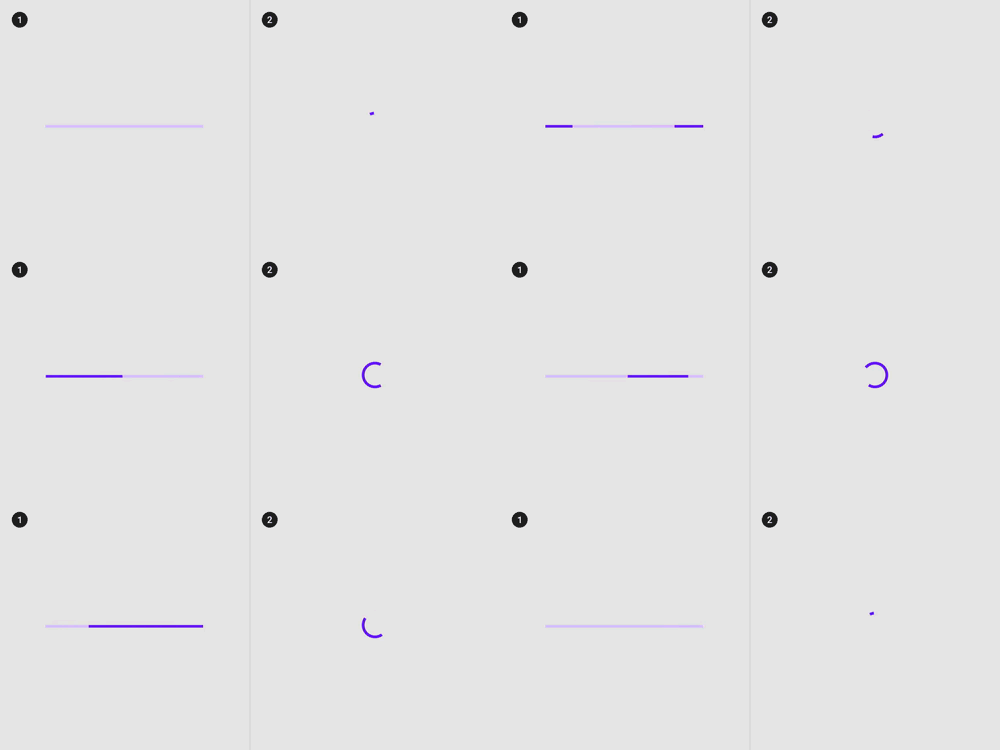
As mentioned above, Material Design offers two visually distinct types of progress indicators:
1. [Linear](#linear-progress-indicator)
1. [Circular](#circular-progress-indicator)
Only one type should represent each kind of activity in an app. For example, if a refresh action displays a circular indicator on one screen, that same action shouldn’t use a linear indicator elsewhere in the app.
## Linear progress indicator
Linear progress indicators display progress by animating an indicator along the length of a fixed, visible track. The behavior of the indicator is dependent on whether the progress of a process is known.
Linear progress indicators support both determinate and indeterminate operations.
* Determinate operations display the indicator increasing in width from 0 to 100% of the track, in sync with the process’s progress.
* Indeterminate operations display the indicator continually growing and shrinking along the track until the process is complete.
### Linear progress indicator examples
[`MDCProgressView` GitHub source](https://github.com/material-components/material-components-ios/blob/develop/components/ProgressView/src/MDCProgressView.h).
### Determinate linear progress indicator example
 To generate a determinate linear progress view like the one above, do the following:
#### Swift
```swift
let progressView = MDCProgressView()
progressView.progress = 0.75
let progressViewHeight = CGFloat(2)
progressView.frame = CGRect(x: 0, y: view.bounds.height - progressViewHeight, width: view.bounds.width, height: progressViewHeight)
view.addSubview(progressView)
```
#### Objective-C
```objc
@property(nonatomic) MDCProgressView *progressView;
...
// Progress view configuration.
self.progressView = [[MDCProgressView alloc] initWithFrame:myframe];
self.progressView.frame = CGRectMake(0, view.bounds.height - progressViewHeight, view.bounds.width, progressViewHeight);
self.progressView.progress = 0.75f;
[self.view addSubview:self.progressView];
```
### Indeterminate linear progress indicator example
To generate a determinate linear progress view like the one above, do the following:
#### Swift
```swift
let progressView = MDCProgressView()
progressView.progress = 0.75
let progressViewHeight = CGFloat(2)
progressView.frame = CGRect(x: 0, y: view.bounds.height - progressViewHeight, width: view.bounds.width, height: progressViewHeight)
view.addSubview(progressView)
```
#### Objective-C
```objc
@property(nonatomic) MDCProgressView *progressView;
...
// Progress view configuration.
self.progressView = [[MDCProgressView alloc] initWithFrame:myframe];
self.progressView.frame = CGRectMake(0, view.bounds.height - progressViewHeight, view.bounds.width, progressViewHeight);
self.progressView.progress = 0.75f;
[self.view addSubview:self.progressView];
```
### Indeterminate linear progress indicator example
 To generate an indeterminate linear progress view like the one above, set the `mode` property.
#### Swift
```swift
progressView.mode = .indeterminate
```
#### Objective-C
```objc
self.progressView.mode = MDCProgressViewModeIndeterminate;
```
## Anatomy and key properties
A linear progress indicator consists of the following:
1. Track
2. Indicator
### Linear indicator attributes
| Attribute | Related method(s) | Default value
----------------------- | --------------------------------- | ----------------------------------------------- | -------------
**Color** | `progressTintColor` | `-setProgressTintColor:]`
To generate an indeterminate linear progress view like the one above, set the `mode` property.
#### Swift
```swift
progressView.mode = .indeterminate
```
#### Objective-C
```objc
self.progressView.mode = MDCProgressViewModeIndeterminate;
```
## Anatomy and key properties
A linear progress indicator consists of the following:
1. Track
2. Indicator
### Linear indicator attributes
| Attribute | Related method(s) | Default value
----------------------- | --------------------------------- | ----------------------------------------------- | -------------
**Color** | `progressTintColor` | `-setProgressTintColor:]`
`-progressTintColor]` | Blue 500
### Linear track attributes
| Attribute | Related method(s) | Default value
-------------------- | ------------------------ | ----------------- | -------------
**Color** | `trackTintColor` | `-setTrackTintColor:]`
`-trackTintColor]` | `progressTintColor` at `0.3` saturation
## Circular progress indicator
Circular progress indicators display progress by animating an indicator along an invisible circular track in a clockwise direction. They can be applied directly to a surface, such as a button or card.
Circular progress indicators support both determinate and indeterminate processes.
* Determinate circular indicators fill the invisible, circular track with color, as the indicator moves from 0 to 360 degrees.
* Indeterminate circular indicators grow and shrink in size while moving along the invisible track.
### Circular progress indicator examples
[`MDCActivityIndicator` GitHub source](https://github.com/material-components/material-components-ios/blob/develop/components/ActivityIndicator/src/MDCActivityIndicator.h).
### Determinate circular progress view example
 `MDCActivityIndicator` instances can be shown as determinate by modifying the `indicatorMode`
property and setting a percentage progress with `progress`. `progress` must be set to a floating
point number between 0 and 1. Values beyond this range will be capped within the range.
_**NOTE: Activity indicators are hidden unless they are animating, even if the indicator is determinate
progress.**_
#### Swift
```swift
let activityIndicator = MDCActivityIndicator()
activityIndicator.sizeToFit()
activityIndicator.indicatorMode = .determinate
activityIndicator.progress = 0.5
view.addSubview(activityIndicator)
// To make the activity indicator appear:
activityIndicator.startAnimating()
// To make the activity indicator disappear:
activityIndicator.stopAnimating()
```
#### Objective-C
```objc
MDCActivityIndicator *activityIndicator = [[MDCActivityIndicator alloc] init];
[activityIndicator sizeToFit];
activityIndicator.indicatorMode = MDCActivityIndicatorModeDeterminate;
activityIndicator.progress = 0.5;
[view addSubview:activityIndicator];
// To make the activity indicator appear:
[activityIndicator startAnimating];
// To make the activity indicator disappear:
[activityIndicator stopAnimating];
```
### Indeterminate circular progress view example
`MDCActivityIndicator` instances can be shown as determinate by modifying the `indicatorMode`
property and setting a percentage progress with `progress`. `progress` must be set to a floating
point number between 0 and 1. Values beyond this range will be capped within the range.
_**NOTE: Activity indicators are hidden unless they are animating, even if the indicator is determinate
progress.**_
#### Swift
```swift
let activityIndicator = MDCActivityIndicator()
activityIndicator.sizeToFit()
activityIndicator.indicatorMode = .determinate
activityIndicator.progress = 0.5
view.addSubview(activityIndicator)
// To make the activity indicator appear:
activityIndicator.startAnimating()
// To make the activity indicator disappear:
activityIndicator.stopAnimating()
```
#### Objective-C
```objc
MDCActivityIndicator *activityIndicator = [[MDCActivityIndicator alloc] init];
[activityIndicator sizeToFit];
activityIndicator.indicatorMode = MDCActivityIndicatorModeDeterminate;
activityIndicator.progress = 0.5;
[view addSubview:activityIndicator];
// To make the activity indicator appear:
[activityIndicator startAnimating];
// To make the activity indicator disappear:
[activityIndicator stopAnimating];
```
### Indeterminate circular progress view example
 `MDCActivityIndicator` instances are indeterminate by default.
#### Swift
```swift
let activityIndicator = MDCActivityIndicator()
activityIndicator.sizeToFit()
view.addSubview(activityIndicator)
// To make the activity indicator appear:
activityIndicator.startAnimating()
// To make the activity indicator disappear:
activityIndicator.stopAnimating()
```
#### Objective-C
```objc
MDCActivityIndicator *activityIndicator = [[MDCActivityIndicator alloc] init];
[activityIndicator sizeToFit];
[view addSubview:activityIndicator];
// To make the activity indicator appear:
[activityIndicator startAnimating];
// To make the activity indicator disappear:
[activityIndicator stopAnimating];
```
## Theming
Theming is only available for linear progress indicators on iOS. The following is an example of an `MDCProgressView` with a Shrine theme:
`MDCActivityIndicator` instances are indeterminate by default.
#### Swift
```swift
let activityIndicator = MDCActivityIndicator()
activityIndicator.sizeToFit()
view.addSubview(activityIndicator)
// To make the activity indicator appear:
activityIndicator.startAnimating()
// To make the activity indicator disappear:
activityIndicator.stopAnimating()
```
#### Objective-C
```objc
MDCActivityIndicator *activityIndicator = [[MDCActivityIndicator alloc] init];
[activityIndicator sizeToFit];
[view addSubview:activityIndicator];
// To make the activity indicator appear:
[activityIndicator startAnimating];
// To make the activity indicator disappear:
[activityIndicator stopAnimating];
```
## Theming
Theming is only available for linear progress indicators on iOS. The following is an example of an `MDCProgressView` with a Shrine theme:
 To theme an `MDCProgressView` with a theming extension and a container scheme, first add the following to your `Podfile`:
```ruby
pod 'MaterialComponents/ProgressView+Theming'
```
Then run the installer:
```bash
pod install
```
Then, import the relevant target or file and call the theming method.
#### Swift
```swift
// Import the ProgressView theming module
import MaterialComponents.MaterialProgressView_Theming
...
// Create or use your app's Container Scheme
let containerScheme = MDCContainerScheme()
// Theme the progress view with either default theme
progressView.applyTheme(withScheme: containerScheme)
```
#### Objective-C
```objc
// Import the ProgressView Theming Extensions header
#import
...
// Create or use your app's Container Scheme
MDCContainerScheme *containerScheme = [[MDCContainerScheme alloc] init];
// Theme the progress view with either default theme
[self.progressView applyThemeWithScheme:containerScheme];
```
To theme an `MDCProgressView` with a theming extension and a container scheme, first add the following to your `Podfile`:
```ruby
pod 'MaterialComponents/ProgressView+Theming'
```
Then run the installer:
```bash
pod install
```
Then, import the relevant target or file and call the theming method.
#### Swift
```swift
// Import the ProgressView theming module
import MaterialComponents.MaterialProgressView_Theming
...
// Create or use your app's Container Scheme
let containerScheme = MDCContainerScheme()
// Theme the progress view with either default theme
progressView.applyTheme(withScheme: containerScheme)
```
#### Objective-C
```objc
// Import the ProgressView Theming Extensions header
#import
...
// Create or use your app's Container Scheme
MDCContainerScheme *containerScheme = [[MDCContainerScheme alloc] init];
// Theme the progress view with either default theme
[self.progressView applyThemeWithScheme:containerScheme];
```